
Validate and send a quote
Assign a proposal number, review the PDF, and email it to the customer.
- Who can do this
- Workspace administrator or a teammate with validation and document email permissions
- Before you start
- A draft proposal with at least one line and an eligible email address on the customer company or a linked contact.
Steps
Sam’s draft is ready for Dana Reyes, the workspace administrator, to review and send.
- Open the draft from Operations → Sales → Proposals. Check the company, contact, validity date, line quantities, pricing and total.
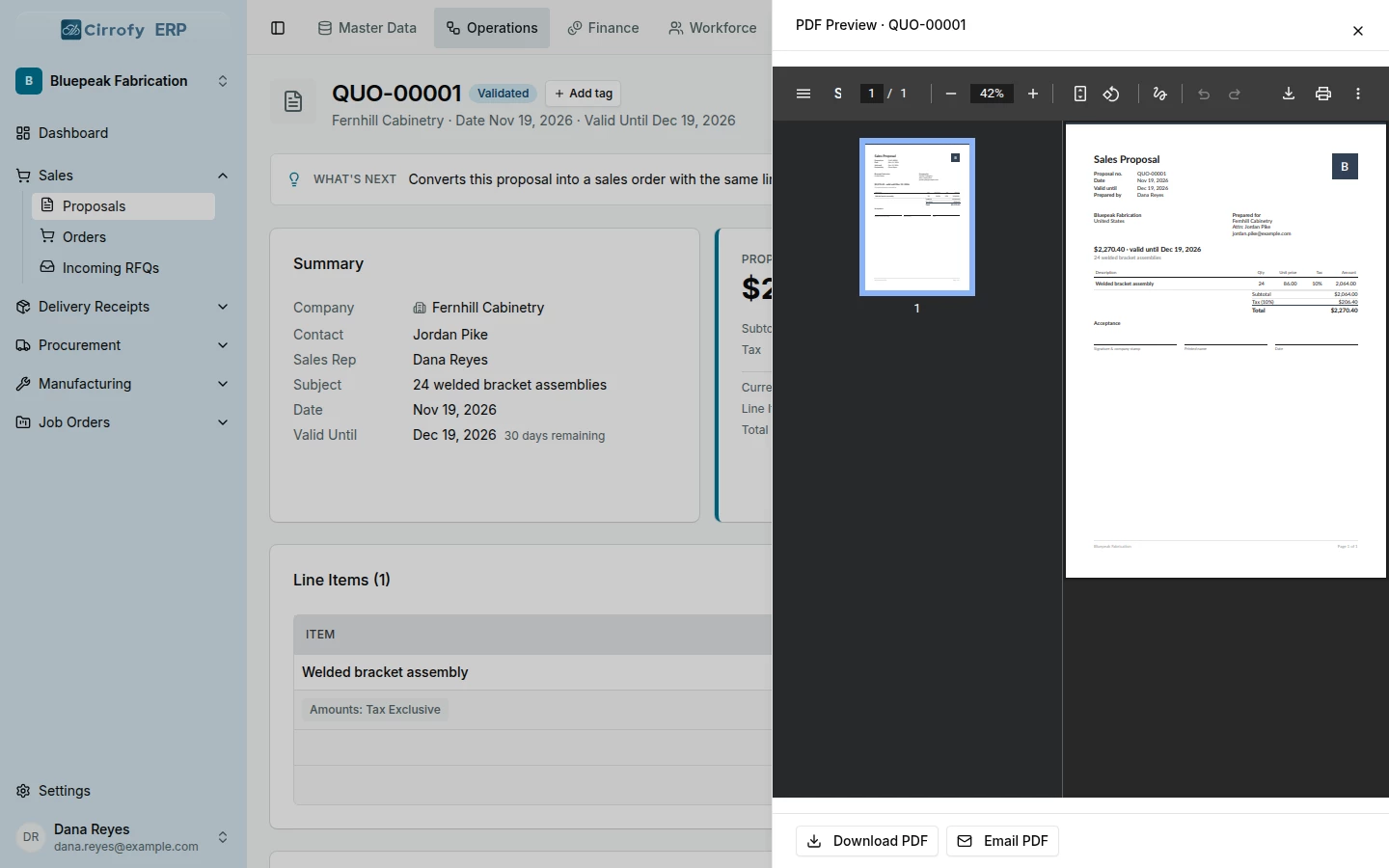
- Select Validate, then Confirm. Cirrofy locks the proposal lines, assigns the permanent number and shows Validated.
- Select Preview PDF. Check the customer information, items and total on the PDF.
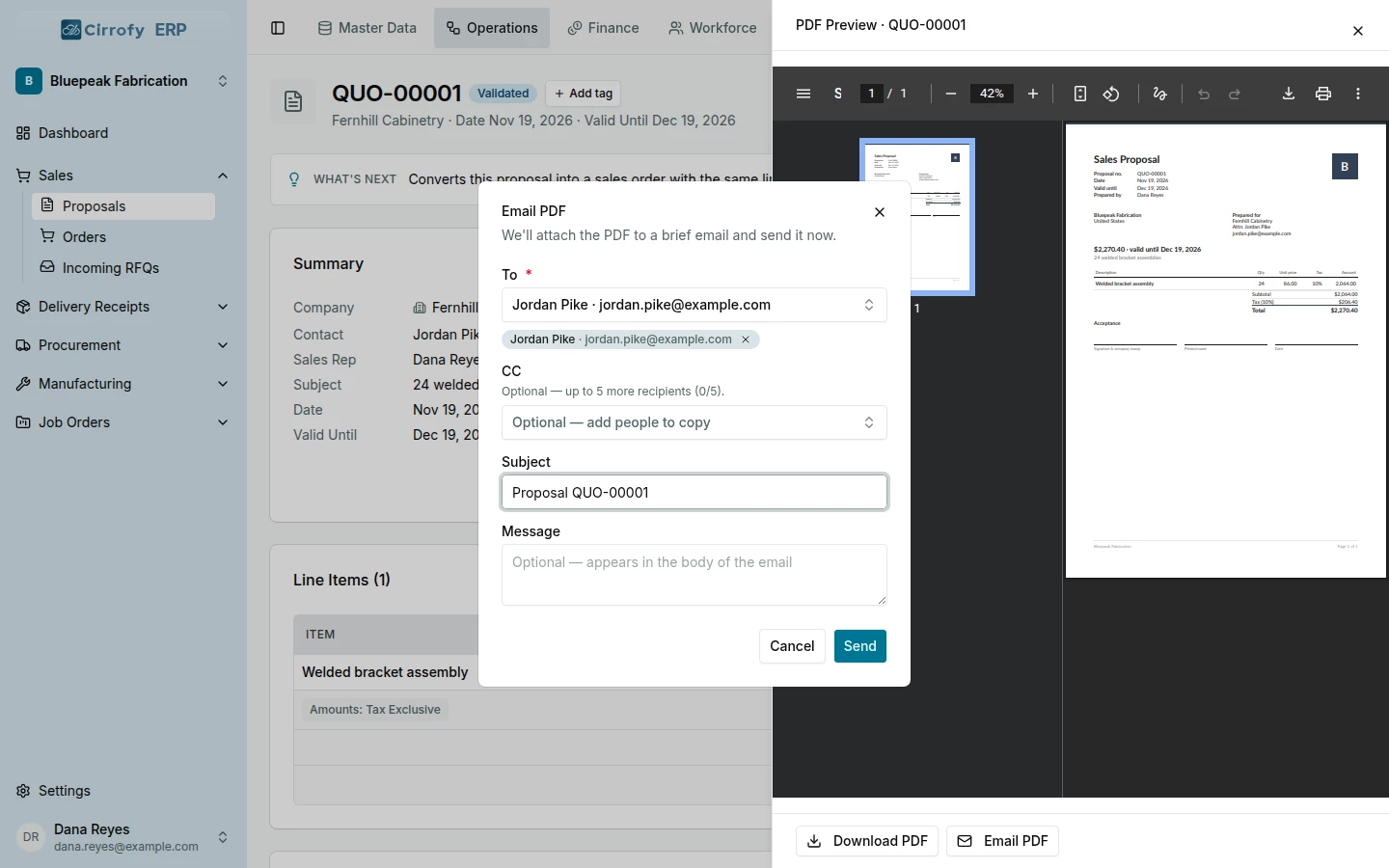
- Select Email PDF. In To, choose Jordan Pike’s on-file address. Check the subject and enter a message or add CC recipients if needed.
- Select Send to queue the PDF email. Keep the quote number handy so you can find the proposal when the customer confirms.
If the recipient is missing, check the email on the customer company or an active linked contact. If Email PDF is unavailable, ask your administrator to check your access and the proposal’s status.
What you’ll see
The proposal has a permanent number and the PDF email is queued for the chosen recipient.