
Add your first product
Create a sellable catalog item you can reuse on proposals and orders.
- Who can do this
- Workspace administrator
- Before you start
- Catalog is enabled in your workspace and you can create items.
Steps
- In Master Data, open Catalog → Items → New Item.
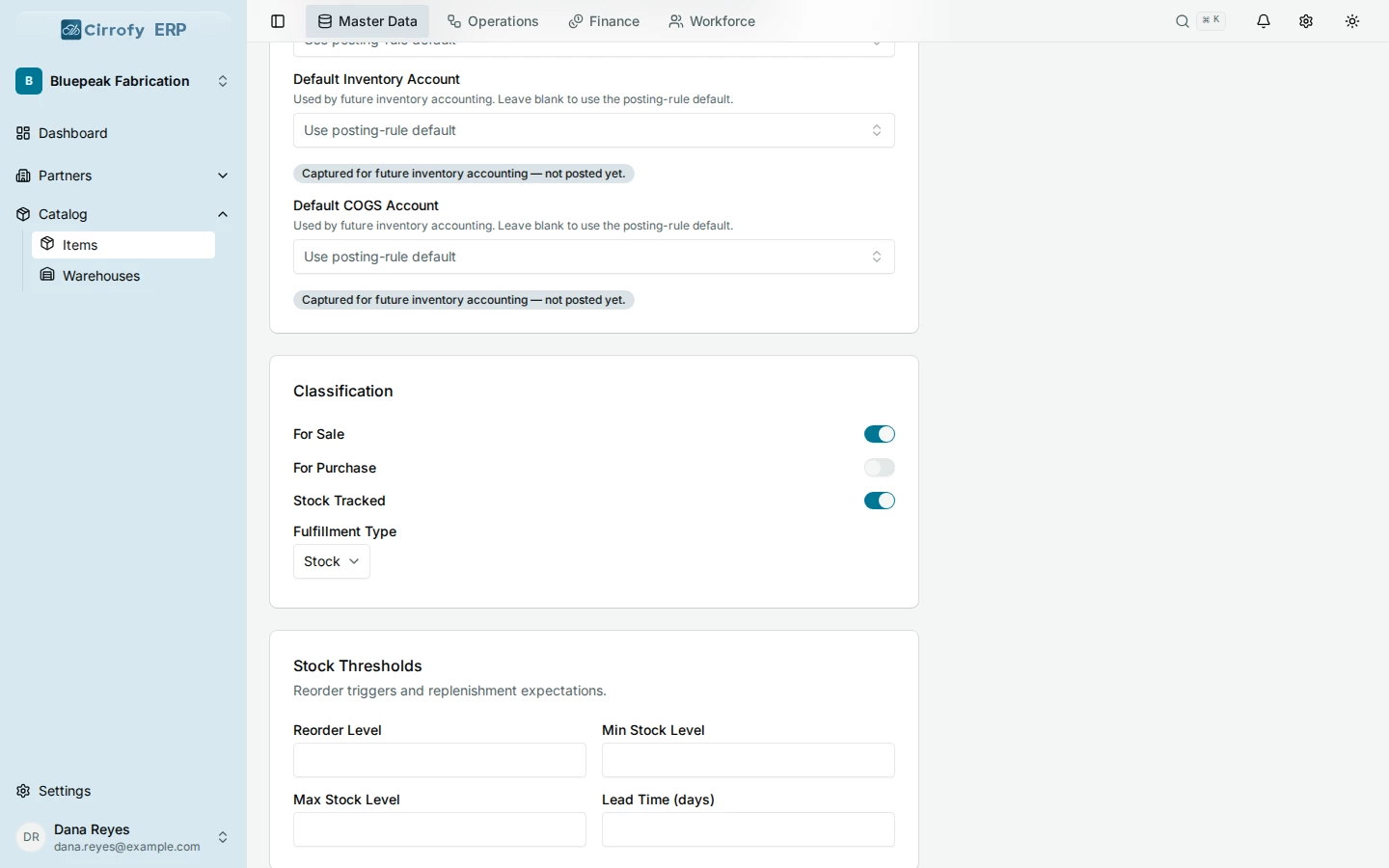
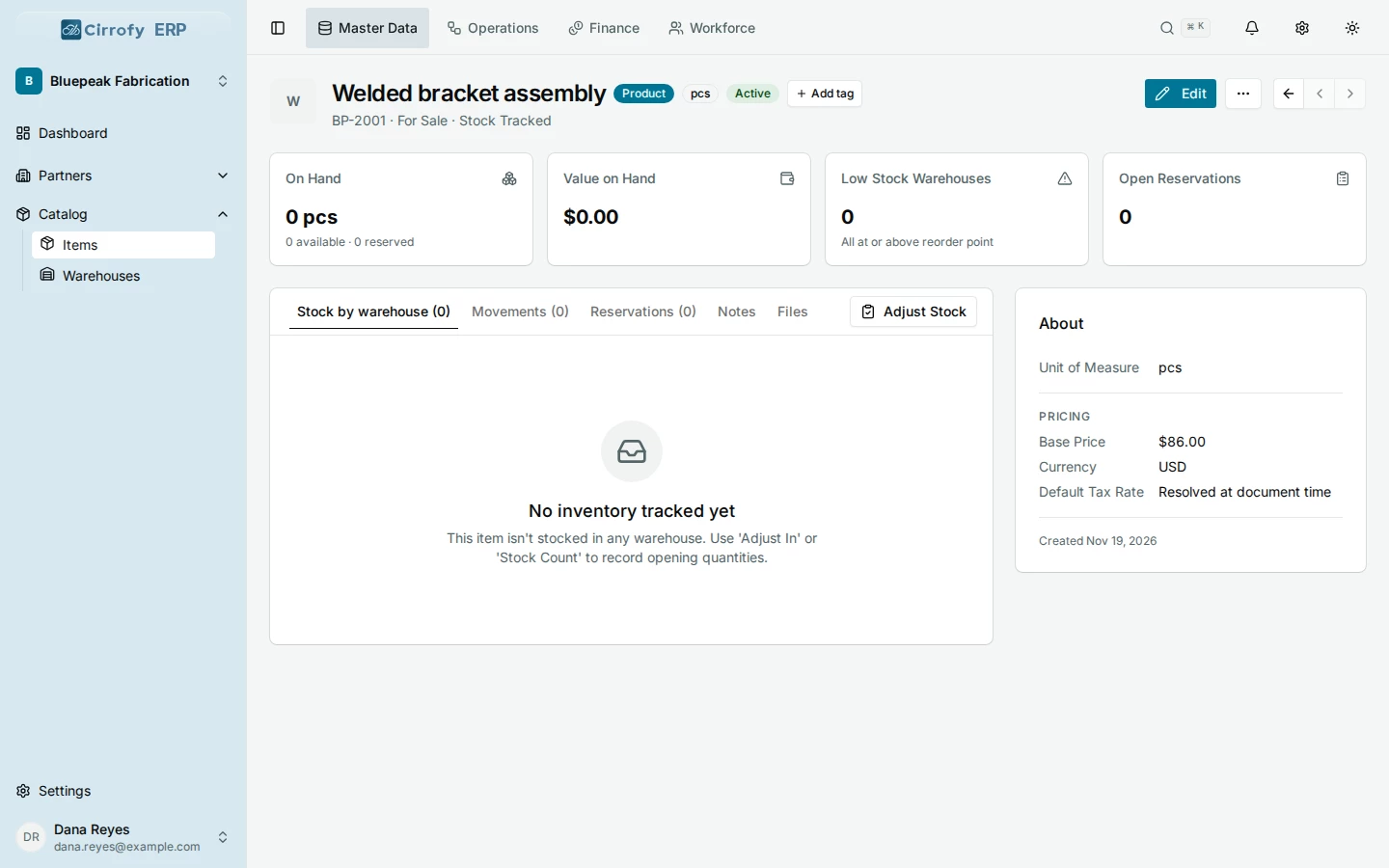
- Enter a Name and SKU, and choose Product as the Type. Bluepeak’s example uses Welded bracket assembly with SKU
BP-2001. You can also select Generate beside the SKU field. - Set Unit of Measure to pieces, enter a Base Price of 86 USD, and keep For Sale enabled. Bluepeak tracks this product in stock.
- Select Save. Open the item and check its name, SKU and price.
Adding a product creates a catalog record. Record opening stock or receive goods when you’re ready to track on-hand quantities.
Set a default warehouse
A proposal with stock-tracked products needs an active default warehouse before you can create an order from it.
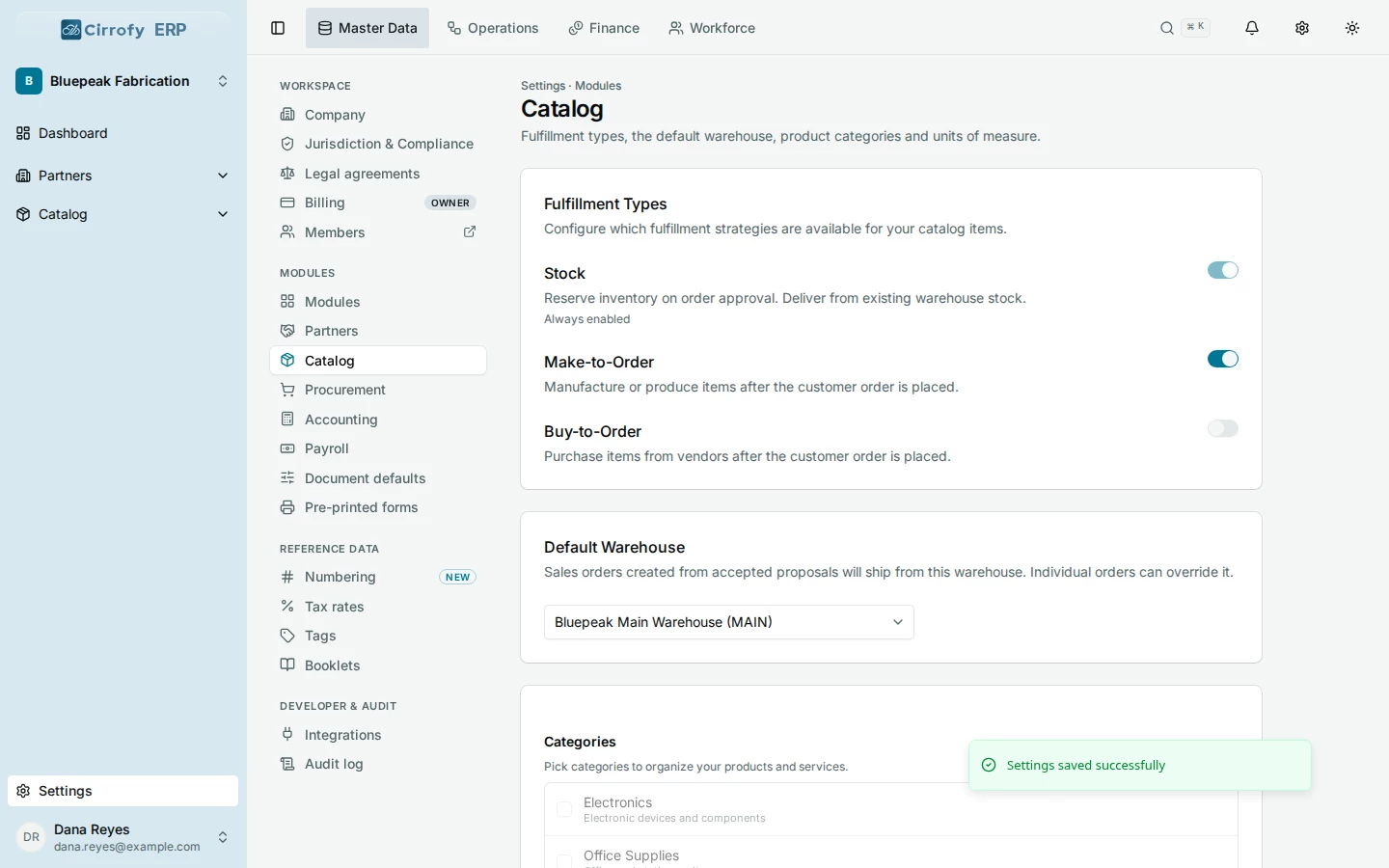
- Open Settings → Catalog and find Default Warehouse.
- If you have no warehouse yet, select Manage Warehouses → New Warehouse, enter Bluepeak Main Warehouse for the example and save.
- Return to Settings → Catalog. Under Default Warehouse, choose Bluepeak Main Warehouse or another active warehouse from Select a warehouse.
What you’ll see
Your saved product is available in the proposal’s item picker.