
Set permissions and invite your first user
Give a teammate the Sales Representative role and confirm they can join.
- Who can do this
- Workspace administrator
- Before you start
- A workspace you can manage, an available user seat, and your teammate’s email address.
Steps
Use Sales Representative for a teammate who prepares proposals. In a new workspace, this role can create and edit drafts, create partner records, and browse the catalog. The default role can’t add catalog items, validate or email a proposal, or record acceptance. Dana Reyes has the Tenant Admin role and handles those steps in this guide. If your workspace uses custom roles, review the grants before inviting someone.
- In the workspace, open Settings → Members → Users.
- Open Roles and select the edit pencil on the Sales Representative row to review its grants. Select Cancel when you’re done. The Permissions tab explains individual grants. Return to Users.
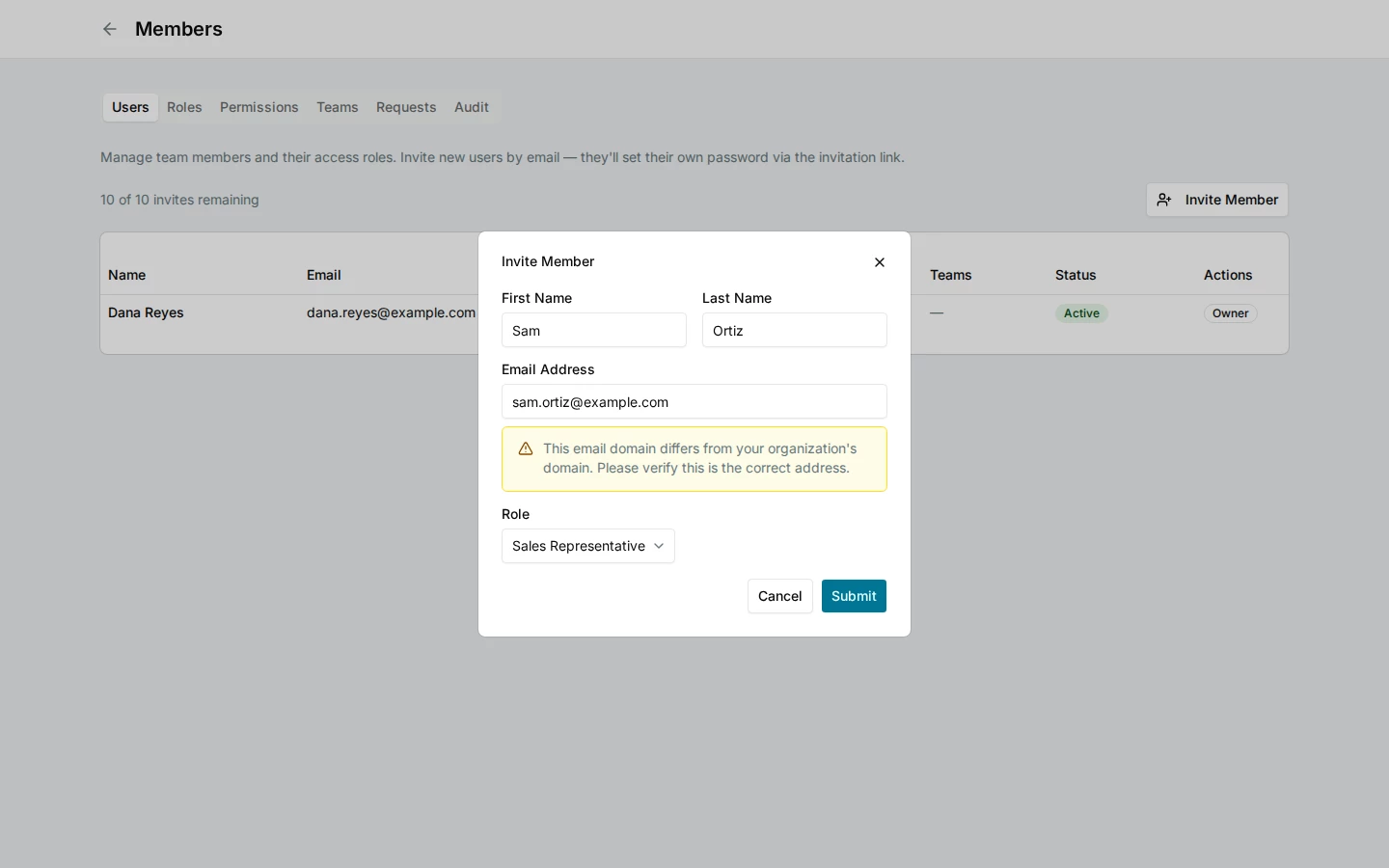
- Select Invite Member. Enter the teammate’s Email Address and choose Sales Representative in Role. First and last names are optional. Bluepeak’s fictional teammate is Sam Ortiz, using
[email protected]in the walkthrough. - Select Submit. The member appears as pending.
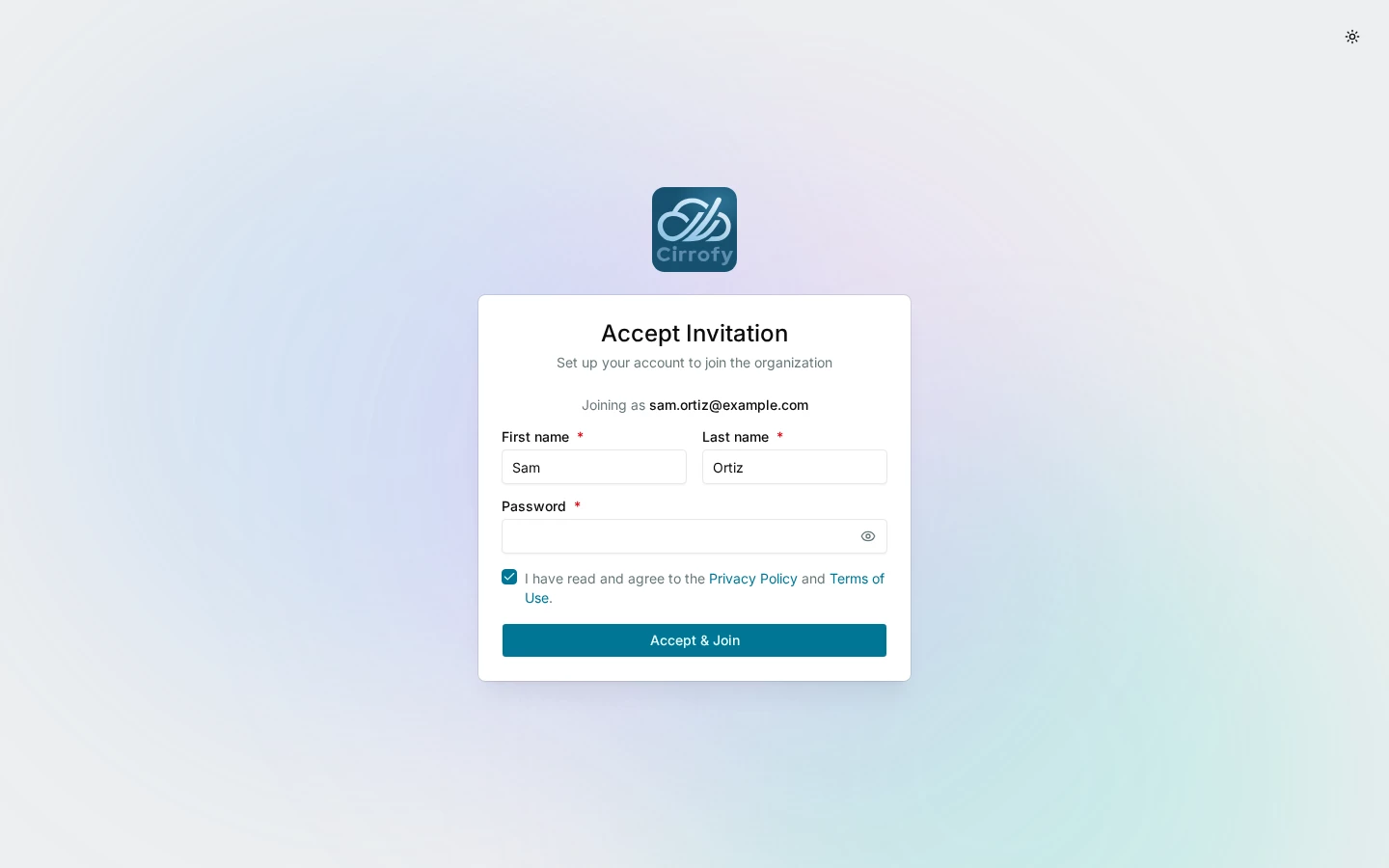
- Have your teammate open the invitation. If they’re new to Cirrofy, they enter their first and last names and create a password. If they already have an account, they sign in with the invited address. They review and accept the Privacy Policy and Terms of Use, then select Accept & Join. If Cirrofy takes them to Sign In, they sign in with the invited address and their password.
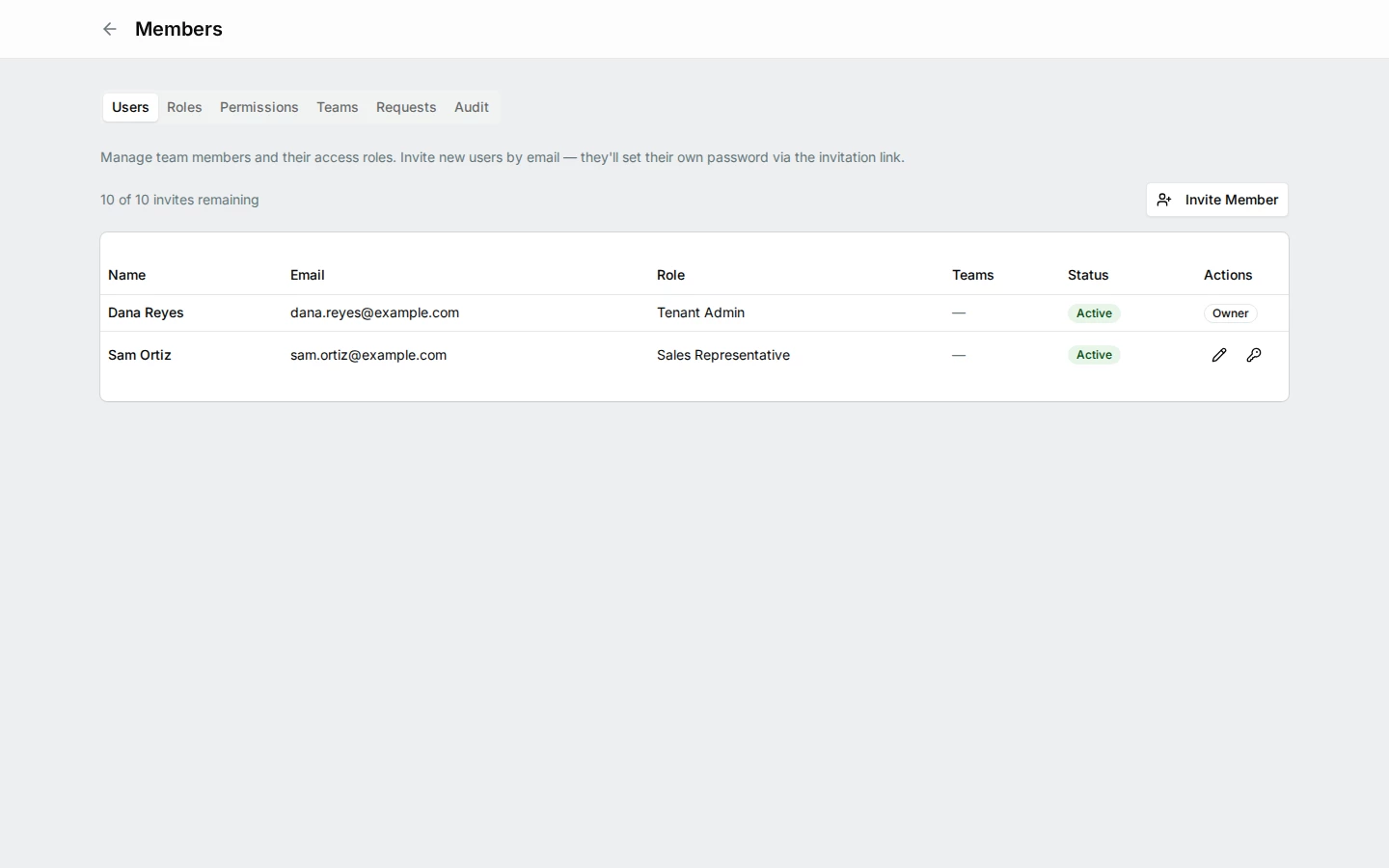
- Return to Users and verify the member is active and has the intended role.
For a real invitation, enter an address the teammate can access. The example.com addresses throughout this guide are for illustration.
If you see Seat limit reached during the preview, contact Cirrofy to request another seat.
What you’ll see
The Users list shows your teammate as active with the Sales Representative role.