
Record acceptance and create a Sales Order
Record the customer’s confirmation and carry the proposal into a linked draft order.
- Who can do this
- Workspace administrator or an authorized sales approver
- Before you start
- A validated proposal and confirmation from the customer. Stock-tracked items also need an active default warehouse.
Steps
Wait until your customer confirms directly with your team, such as by email or by returning the signed proposal. Dana records Fernhill’s acceptance in Cirrofy.
- In Operations → Sales → Proposals, open the validated proposal. Confirm it matches what the customer agreed to, including the prices and validity date.
- Select Accept & Create Order, then Confirm. Cirrofy records the proposal as Accepted and opens the new Draft Sales Order.
- Check the customer, contact, warehouse, and line for 24 welded bracket assemblies. Confirm that the total matches the proposal.
- In the order’s Summary, open the From Proposal link to verify the proposal shows Accepted.
If Cirrofy asks for a default warehouse, ask the administrator to set an active default warehouse. Then return to the proposal and try again.
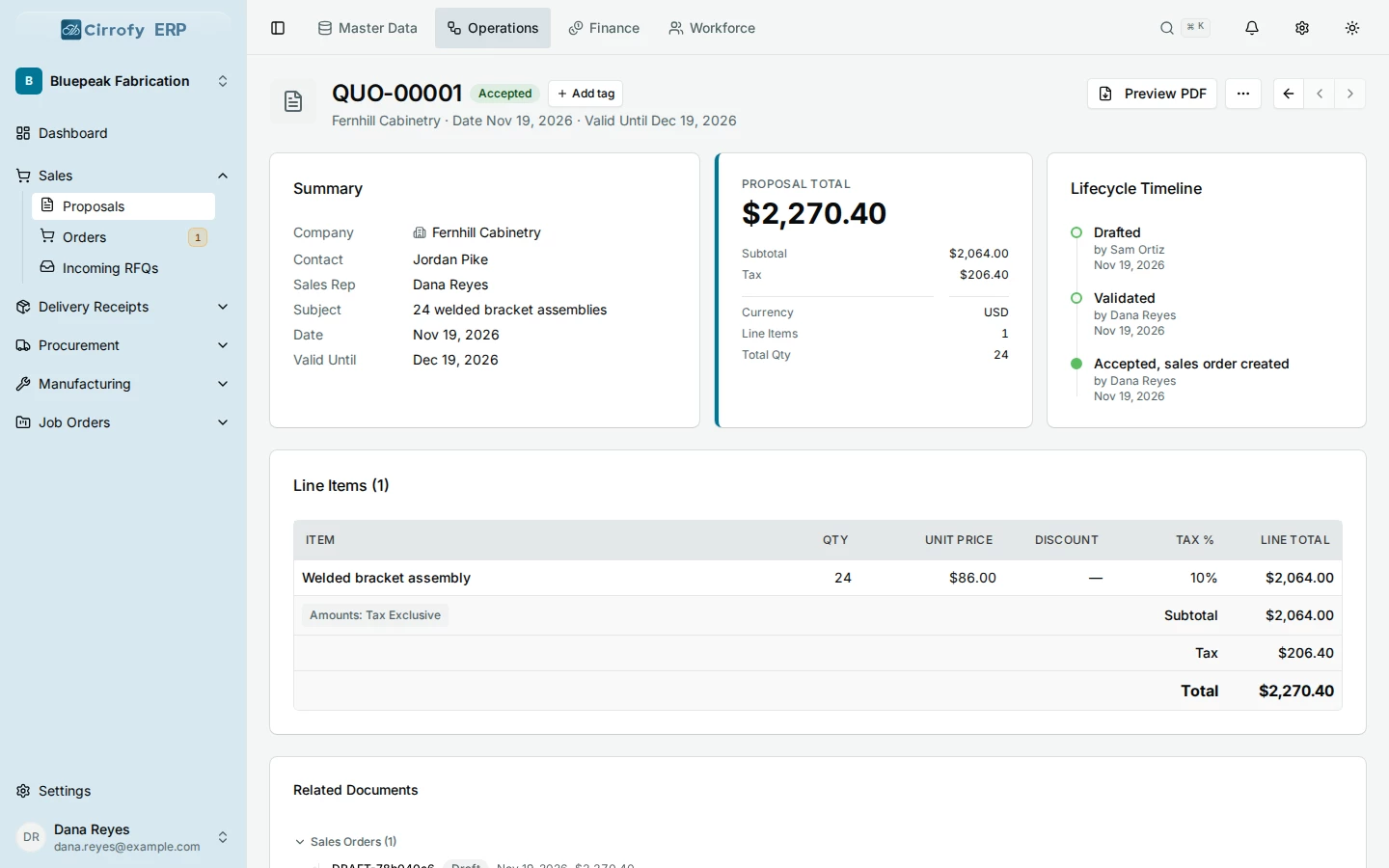
What you’ll see
The proposal is Accepted and a linked Draft Sales Order contains its customer, contact and lines.